The script worked on your machine. It pulled a few hundred rows from a product listing, wrote a CSV, and finished in under a minute. Two days later, same URL, same selectors, same Python file, and it returns an empty table and a 403. Nothing in the code changed, which is the useful clue: the failure isn't in your Python, it's in the session, the timing, or the page's defenses.
Browser automation with Python is easy to start and hard to keep running. Playwright and Selenium hand you a real browser under programmatic control, but production work is mostly about what happens when a page loads slowly, a selector moves, a login expires, or a challenge page replaces the content you wanted. This guide covers that side of the job: choosing a library, synchronizing on the page instead of the clock, extracting rows, running concurrently, classifying failures, and recognizing the point where patching a local script stops paying off.
Choose a Library and Set Up Your Environment
Pick the tool by the failures it lets you diagnose. For new work, choose Playwright: auto-waiting, locators, tracing and one API for Chromium, Firefox and WebKit make timing bugs visible instead of random. Keep Selenium when the organization already runs a Selenium suite or needs its grid and driver coverage. Skip the browser entirely when a plain GET returns the HTML or JSON you need; requests plus BeautifulSoup finishes sooner and has fewer moving parts.
| Library | Best for | Install command | Browser setup |
|---|---|---|---|
| Playwright | New projects, JavaScript-heavy pages, built-in tracing | pip install playwright |
playwright install chromium downloads the browser |
| Selenium | Existing test suites, wide driver ecosystem | pip install selenium |
Selenium Manager fetches a matching driver |
| requests + BeautifulSoup | Static HTML and JSON endpoints with no JavaScript | pip install requests beautifulsoup4 |
No browser needed |
All three sit on the same foundation. The W3C WebDriver specification defines a platform- and language-neutral wire protocol that lets an out-of-process program inspect and control a browser. Work toward an internet standard began in 2012, the first working draft landed in July 2012, and the W3C Recommendation followed in June 2018. That shared protocol is why locator-based code can move between Chrome and Firefox with small changes rather than a rewrite.
Python's share of that ecosystem explains why the tooling is deep. The Stack Overflow 2025 Developer Survey reports Python used by 57.9% of respondents, a 7-percentage-point increase from 2024, and that same base maintains the HTTP clients, parsers and schedulers your script will call next. If the choice comes down to browser engine rather than language, this Playwright vs Puppeteer comparison covers the API differences you'll hit first.
Set up in four commands
- Create the environment.
python -m venv .venv, then activate it (source .venv/bin/activateon macOS or Linux,.venv\Scripts\activateon Windows). Everything installed after this lands in the project instead of the system Python. - Install the library.
pip install playwrightgives you the API. It does not include a browser. - Download the browser.
playwright install chromiumpulls a pinned Chromium build into the local cache. Skipping it is the single most common cause of a first launch that fails with a missing executable. - Prove it works. Write a five-line script that opens
https://example.com, printspage.title(), and closes the browser.
Success looks like Example Domain printed once, no traceback, no window left open. If nothing prints, confirm the virtual environment is active in that shell and that the browser download completed.
How to Launch, Load and Check a Page
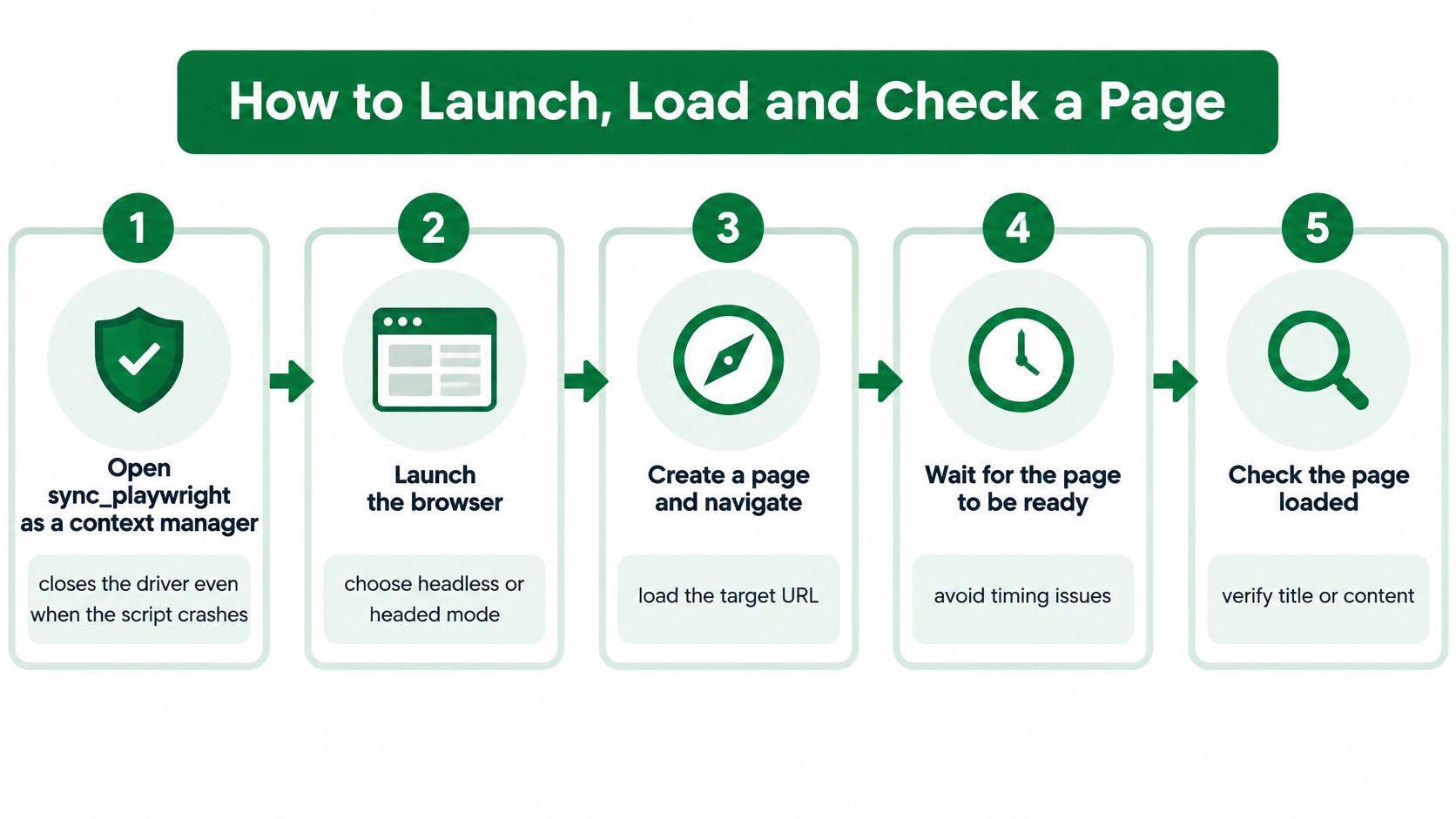
Most first scripts fail in the same three places: the driver is never closed, one browser is reused across every job, and the code reads the page before anything has rendered. The five steps below are the shape of a run that survives contact with a real site.
- Open
sync_playwright()as a context manager. Thewithblock closes the driver on the way out, including when an exception fires mid-run. A launcher you start by hand leaks a driver process on every crash, and those accumulate until the machine runs out of memory. - Launch with
headless=Falsewhile you develop. You need to see the redirect chain, the cookie banner and the empty table with your own eyes. Switch to headless on the server, where nobody is watching and the display server doesn't exist. - Create a fresh
browser.new_context()for each job. Cookies, localStorage and cache stay inside that context and die with it. Reusing one context is how a stale session cookie becomes a login wall on job 40. - Call
page.goto(url, timeout=45000, wait_until="domcontentloaded"). The defaultloadstate waits for every image, font and ad iframe to finish. On a heavy page that's the difference between 3 seconds and 30. Usedomcontentloadedand then wait for the specific element you need next. - Read
page.urlandpage.title()immediately after. Redirects and soft 404s return status 200 with the wrong page on it. Comparing the final URL and title catches a login wall before your selectors start failing one by one.
Rule of thumb: a run that leaves a browser process behind is a bug, not cleanup noise. Check for stragglers with
pgrep -f chromiumafter every change to the launch code.
What a healthy run looks like
The title matches the page you intended to reach, the URL is the path you expected after redirects, the run finishes inside the timeout you set, and no browser process survives it. Close the context and the browser in a finally block. Timeouts, cancellations and KeyboardInterrupt all skip straight past your happy path, and a finally is the only thing that catches every one of them.
Click, Type and Wait Without Fixed Sleeps
Delete every sleep() call from the script. A fixed delay is wrong in both directions: too short on a slow run, wasteful on a fast one, and the flakiness it produces looks random when you debug it weeks later. Playwright's locators handle the timing for you. Before an action fires, the library checks that the target is visible, enabled, stable in position, and not covered by another element, then retries until your timeout expires. When those checks never pass, the action raises TimeoutError instead of clicking into empty space, which is exactly the failure you want (Playwright best practices).
Developers keep relearning this lesson the hard way. Across 49 asynchronous-wait flaky tests in 26 open-source projects, the observed wait intervals ran from 0 to 1,500 ms and averaged 466 ms, while the fixes that resolved them averaged 1,282 ms. Synchronization has to target the application's own signal, not a guess about how long the server usually takes.
Locators in priority order
get_by_role()first.page.get_by_role("button", name="Next")reads the accessibility tree, the same structure a screen reader uses, so it survives a stylesheet rewrite.get_by_label()andget_by_text()next. Both map to what a person sees and clicks, which makes them the most stable anchors on a form.- CSS and XPath last. Class names like
._3xK9fare generated at build time and change on every deploy. A selector built on one has a shelf life measured in days.
| Action | Playwright call | Waits for |
|---|---|---|
| Click a button | page.get_by_role('button', name='Next').click() |
Visible, enabled, stable, not covered |
| Type into a field | page.get_by_label('Email').fill('[email protected]') |
Editable input |
| Choose from a dropdown | page.get_by_label('Country').select_option('DE') |
Option available |
| Upload a file | page.locator('input[type=file]').set_input_files('report.pdf') |
File input attached |
| Confirm a result | expect(page.get_by_text('Saved')).to_be_visible() |
Text appears, retried until timeout |
Frames need their own scope
A locator created on the main page cannot see inside an iframe, which is why payment fields, embedded editors and consent dialogs fail with "element not found" while you can see them on screen. Use page.frame_locator("#checkout-frame").get_by_label("Card number") and the rest of the API behaves normally inside that scope. Cross-origin frames behave the same way; the browser's security model doesn't change because you're automating.
Then finish the habit. After every state-changing action, assert the result with expect(...).to_be_visible() or wait for the specific response with page.wait_for_response(). A successful click on Save is not a successful save, and the only proof is the UI or the network telling you so.
Extract Data and Run Across Many Pages
The browser renders, and something else parses. Keep those two jobs separate in your head and the code stays readable six months later. The extraction step reads what the browser already produced; it has no business clicking anything.
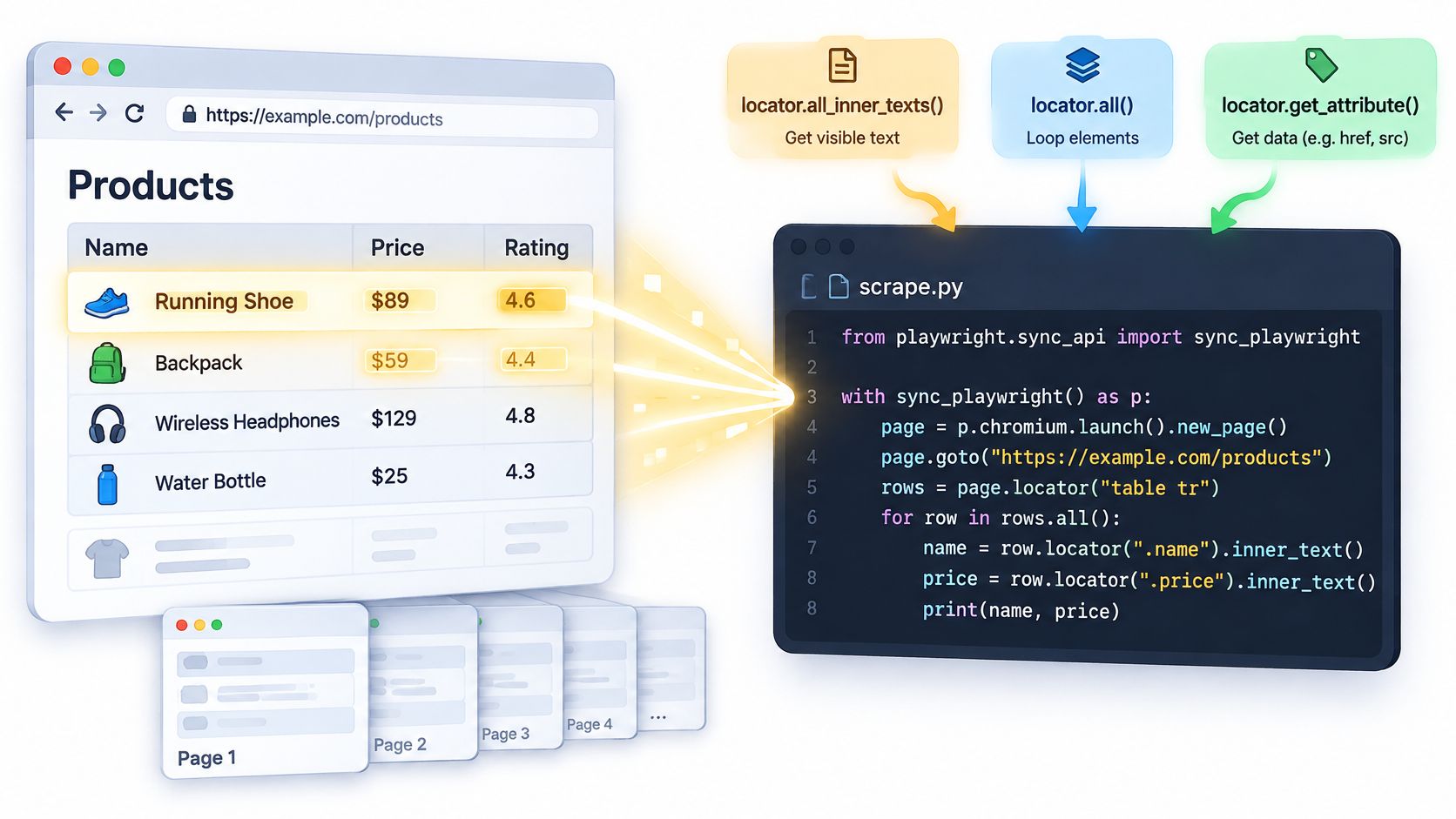
There are three routes from a rendered page to usable records, and the right one depends on the shape of the markup. locator.all_inner_texts() on a repeated row selector is the shortest path when you want visible text from a consistent table. page.evaluate() wins when the page already holds the data in JavaScript, because window.__INITIAL_STATE__ or a similar object is cleaner than anything the DOM shows. page.content() handed to BeautifulSoup is the right call when the markup is nested six divs deep and you want .select() and .get_text() rather than a chain of locators. When the selectors themselves get awkward, a CSS selector cheat sheet beats guessing at DevTools output.
Pagination that survives a crash
Build the loop in four moves. Extract the current page into a list of dicts. Append those rows to the CSV file immediately, opening it in append mode. Click the next control with a locator that matches on role or text. Stop when the button is disabled, missing, or the page returns the same content twice, and add a hard page cap as a safety net for a site that paginates forever.
Writing after every page is the part people skip. A crash on page 40 that loses pages 1 to 39 costs you the whole run, and long scrapes fail eventually. Use the standard csv module with DictWriter, write the header only when the file doesn't exist yet, and let the file be your checkpoint.
If you want to watch the extract, paginate and save sequence running end to end before you build your own version, this walkthrough follows the same steps in a live script:
Watch the video on YouTubeA row count that matches the number of visible items on one sample page is the cheapest correctness test you own. Run it before you run the other 39 pages.
Run Async Pipelines and Notebooks Safely
Concurrency is where a working script becomes a memory leak with a cron schedule. Six checks, in the order I'd apply them when moving from a single run to a pipeline:
- Settle the event loop first. A Jupyter kernel already runs one, so calling
sync_playwright()inside a cell fails with an error about the sync API inside an asyncio loop. Useasync_playwrightwithawaitin notebooks, and keep the sync API for the.pyfiles your scheduler executes. - Cap the fan-out with
asyncio.Semaphore. Three to five concurrent pages covers most collection jobs. A hundred coroutines that each launch a context will exhaust the machine's memory long before the target site notices you. - Give every job its own context and a deadline. Wrap the body in
asyncio.wait_for(coro, timeout=90)and close the context in afinally. A cancelled task that skips cleanup leaves a browser process holding RAM until the box dies. - Restart the browser between batches. Close contexts after each batch and relaunch Chromium every 50 pages. Long-lived browser processes grow steadily, and the resulting leak shows up as a crash on page 900 rather than page 9.
- Retry reads only. Two or three attempts with bounded backoff, and only for operations you can repeat without a side effect.
- Keep parsing outside the browser. The browser clicks, logs in and renders. A plain function or BeautifulSoup turns the HTML into records, and that function stays testable without a network.
Prove the pipeline with ten concurrent jobs before you schedule it. Each run should return the expected row count, the whole batch should finish inside the limit you set, and pgrep -f chromium should come back empty afterwards.
Fix Blocked Pages and Flaky Runs
The most common report from a script in production is a selector that worked yesterday and now times out. The instinct is to raise the global timeout, which usually makes the run slower without making it more reliable. Treat the failure as a classification problem first: selector drift, navigation delay, detached DOM, browser crash, authentication or session expiry, and network error each need a different fix, and guessing wrong costs you a day.
Look at what the wider community hits and the pattern is consistent. Stack Overflow's browser-automation tag carries more than 1,100 questions, and the recurring themes are Selenium and Playwright being detected by Cloudflare, Chrome driver configuration problems, cross-origin iframe failures, and controls that won't click inside modern data grids. Almost none of those are selector syntax problems.
Defaults worth keeping
Start from Playwright's documented defaults of a 60-second navigation timeout and a 5-second action timeout, then override only the operations you know are slow. A click that needs 30 seconds means the page is broken, and letting it wait that long hides the underlying fault. Tight defaults also make failures cheap to diagnose: a run that dies in five seconds with a clear TimeoutError gives you something to classify, while a run that hangs for two minutes leaves you a slow log and no extra information.
| Symptom | Likely cause | First fix |
|---|---|---|
| Element not found after load | Content rendered late or inside an iframe | Wait on the locator's visible state or use frame_locator |
| Timeouts only on some runs | Slow network or heavy scripts | Raise the timeout for that one navigation, keep the 5-second action default |
| Crash after many pages | Memory growth in one long context | Close the context after each job and restart the browser every N pages |
| Duplicate records after a retry | Non-idempotent submit retried | Retry reads only and verify saved state before resubmitting |
Evidence beats guesswork
Record structured telemetry for every failure: URL, browser version, action, locator, which timeout fired, HTTP status and the exception type. On intermittent failures, start a trace with context.tracing.start(screenshots=True, snapshots=True) and attach the zip to the failure record, along with console logs, network errors and the page HTML. Track success rate by domain and workflow rather than one aggregate number, because a 95% overall rate can hide one domain at 40%.
That record turns "it broke again" into a sortable table. Group failures by exception type and the dominant class usually points at one cause, which is faster than re-running the script and watching it.
Bounded retries only. A retried order form creates duplicate records, and a retried "send" creates duplicate messages. Retry reads and explicitly idempotent writes, and verify the saved state before you resubmit anything.
There is a point where local fixes stop working. When a page returns 403 to your client but loads fine in a browser you didn't start, or the challenge appears before any of your code runs, the cause is fingerprint and reputation, and no locator change will fix it. A walkthrough of 403 causes and fixes is a better next read than another stealth flag. Past that point the practical move is a managed browser that keeps a consistent session on a residential IP, because patching user-agent strings on a laptop in one region cannot reproduce the identity a protected site expects. Some managed tiers also record a video of the browser session, which gives you the same evidence a local trace does for failures you cannot reproduce on your own machine.
Keep Automation Within Site Rules and Privacy Limits
Responsible use isn't a disclaimer at the bottom of the repo. It's a set of checks that decide whether the script runs at all, and they take ten minutes before the first request instead of a week after the first complaint. Do them in order.
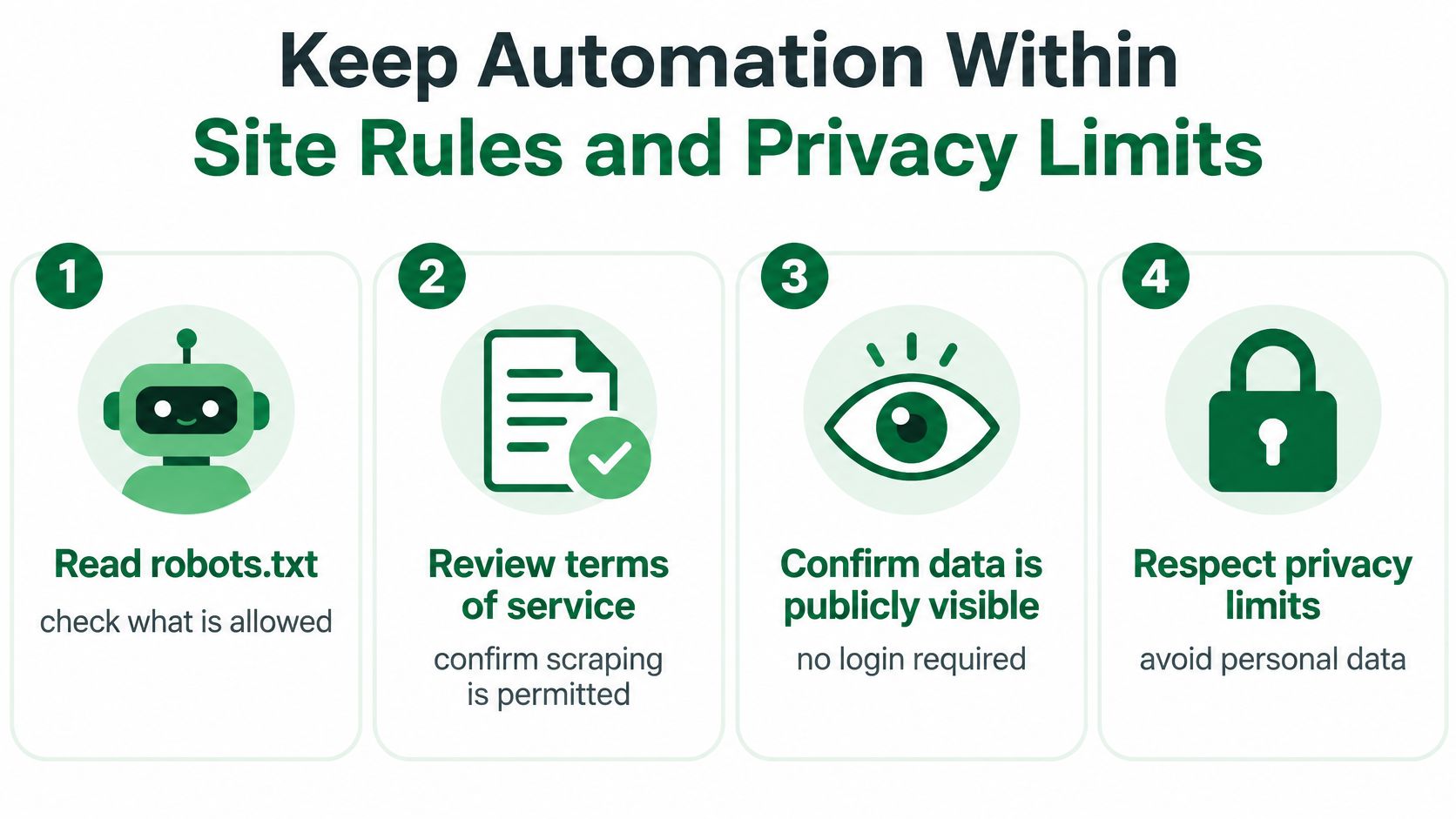
- Read robots.txt and the terms of service. Robots rules describe crawler expectations and terms govern your contract with the site. If the terms forbid automated access, that settles it, whatever the robots file allows.
- Confirm the data is public. If seeing the page requires a login, the data behind it isn't public, and automating around that gate is a different project with different obligations.
- Rate limit per domain. One to two requests per second, with jitter so traffic doesn't arrive in synchronized bursts. Bursts look like an attack to a load balancer even when the daily total is modest.
- Identify your client clearly. Set a descriptive user agent where the site allows it and include a contact address, so an operator who wants you to slow down can reach a person.
- Treat personal data as a separate decision. Names, emails and contact details bring privacy obligations such as GDPR in the EU. Collect the fields you need, store them with a retention limit, and don't scrape a profile field just because it's rendered.
Stop conditions: a site that blocks you on purpose, a request to log in with an account you don't own, or a terms clause forbidding automated access. Each one ends the project, not the current sprint.
Decide Whether to Keep Scripting or Switch to an API
Adding stealth plugins is the most popular answer to blocked runs and one of the least effective. Fingerprints, session state, JavaScript timing, third-party frames and challenge workflows cause most failures, and none of them care how clever your navigator.webdriver patch is. Selectors were rarely the problem.
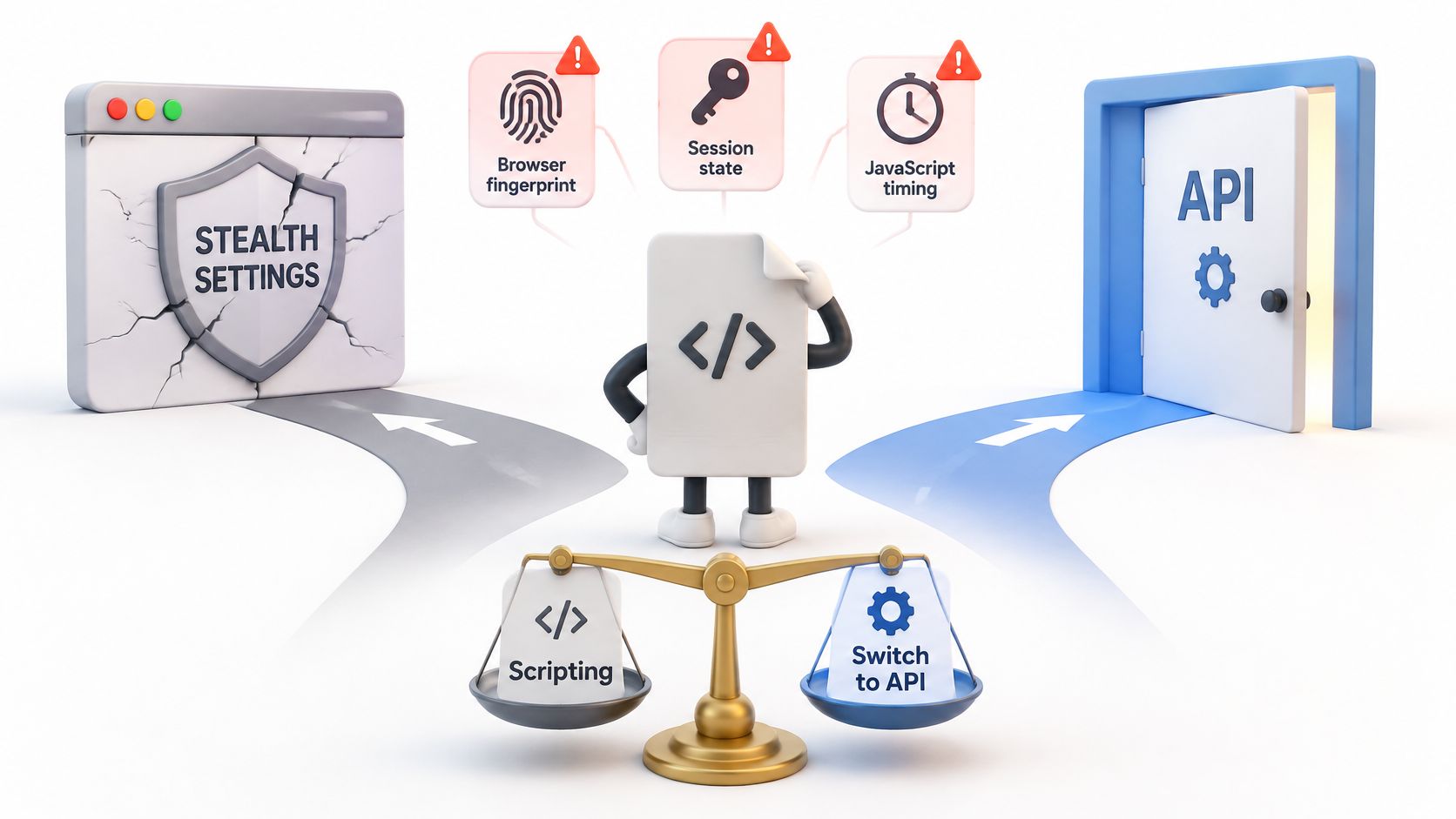
The decision is easier when you stop asking "can I make this work" and start asking where the job sits.
Keep the local script when it targets one or two sites you control or can test freely, runs from a stable network, fails less than a few percent of the time, and fits inside a scheduled job you already operate. A Playwright script in a container is cheap, transparent and entirely yours.
Move the browser off your machine when the work spans many domains, needs IPs in specific countries, keeps landing on challenge pages, or has to run inside a pipeline or an AI agent where nobody is watching to restart it. The playwright-python tag alone collects dozens of recurring questions, and an increasing share are about running this stack somewhere other than a developer's laptop, in scheduled jobs, notebooks and agent tools that assume a single long-running machine.
Draw a deterministic boundary either way. Keep logins, clicks and rendering scripted, and let extraction be the only step you consider delegating to a model. Validate whatever comes back against the row count and a sample page, because a plausible-looking wrong value is worse than a loud failure.
If the output feeds a content or rank-tracking pipeline, the browser layer usually sits underneath a set of SEO automation tools that handle scheduling and reporting, which makes session reliability the part you own.
When the local script has been patched twice and still fails on the third domain, moving the browser is the cheaper path. Scrappey runs full Chrome and Firefox automation through a headless browser, loading pages through a residential IP, rendering JavaScript and keeping a consistent session, and it's built for publicly available web data and automation workflows rather than for scraping behind a login.
Then take one concrete step this week. Pick a single target page, run the launch, locator, extraction and failure-logging steps from this guide against it, and record every failure for seven days. That log tells you whether you have a script to maintain or a platform problem to stop patching.
Scrappey takes the browser layer off your machine: a real Chromium or Firefox engine behind an API, loading through a residential IP with a session that persists across requests, plus scripted clicks, typing, scrolling and waits before extraction returns structured data. Run your hardest URL through it and compare the success rate against your current script. Start with a free trial at Scrappey, no card required, and see whether the week you'd spend on drivers and challenge pages is better spent on the data.