

Your scraper sends a current Chrome User-Agent on every request, and the page still comes back with a 403. Or you get the HTML, but the price grid is empty. Then analytics tells you that most visitors to a mobile-first storefront are on desktop Chrome. Two symptoms, one cause: the header is being treated as an identity document when it's really a label the client writes about itself.
Every HTTP request carries that label, and every server is free to believe it, ignore it, or use it to decide what to send back. Almost every confusion around user agents comes from forgetting the second half of that sentence: belief is optional.
Read a real value token by token and the mystery drains out of it. Read it in the tool that sends it and you can prove what your own traffic looks like. What's left is judgment about when a change helps and when the surrounding request has to agree with it.
What the User-Agent Header Says in Every Request
Think about a parcel arriving at a warehouse. The sender wrote a label on the box: contents, courier, origin depot. Staff read it to route the parcel, and nobody asks the box for a passport. An HTTP request works the same way. The client attaches a User-Agent header to every request so the server knows what software sent it, and the server reads that written statement at face value.
A typical Chrome on Windows value looks like this, and every piece of it is doing a job:
Mozilla/5.0 (Windows NT 10.0; Win64; x64) AppleWebKit/537.36 (KHTML, like Gecko) Chrome/124.0.0.0 Safari/537.36
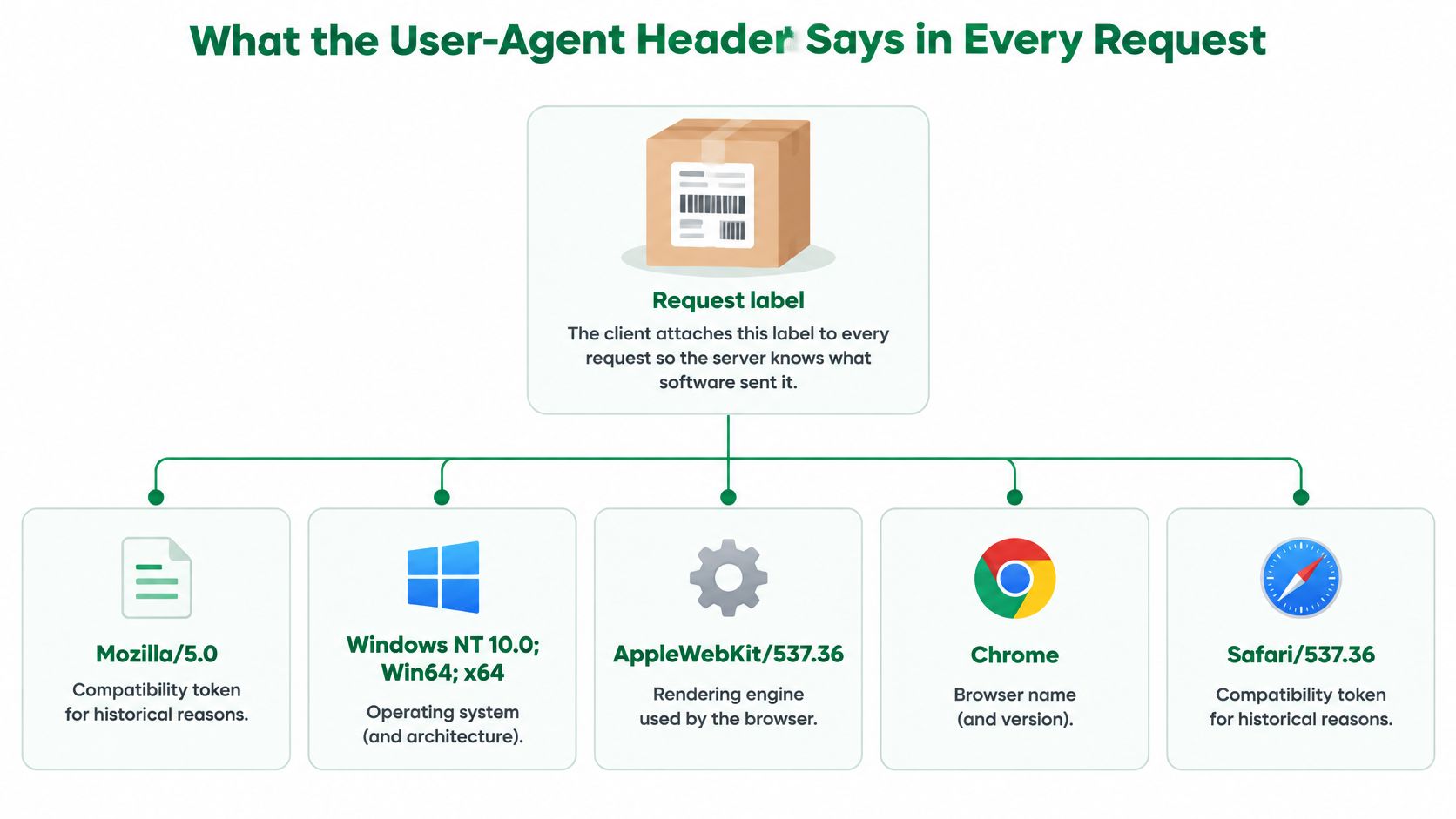
Read it as five parts rather than one long string, and it stops looking like noise.
| Component | Example value | What it signals |
|---|---|---|
| Product token | Mozilla/5.0 | Legacy compatibility token sent by most browsers |
| Platform comment | (Windows NT 10.0; Win64; x64) | Operating system version and processor architecture |
| Rendering engine | AppleWebKit/537.36 (KHTML, like Gecko) | Engine family the browser is built on |
| Browser product | Chrome/124.0.0.0 | Browser name and full version number |
| Compatibility token | Safari/537.36 | Historical token; does not mean the browser is Safari |
The grammar behind that shape comes from the spec. RFC 9110, the HTTP semantics specification, defines the field as one or more product identifiers, each optionally followed by comments, captured as User-Agent = product *( RWS ( product / comment ) ). A user agent is expected to send the field on each request unless it's explicitly configured not to.
Not every client writes a long label. curl/8.5.0 is a complete, valid value: one product token, no platform comment, no engine name. Command-line tools and libraries send the minimum because nothing obliges them to describe their environment.
A field designed for statistics, not identity
Mozilla's account of user-agent detection history traces the field to HTTP/1.0, which formalized it in RFC 1945 in May 1996. Its designers listed three purposes: collecting statistical information, tracing protocol violations, and recognizing clients so servers could avoid limitations that affected particular software. Authentication was never on the list.
The mental model to keep: the header is a return address, not a passport. A return address is written by the sender and nobody checks it; a passport gets compared against the person holding it.
How to Read the User-Agent Your Browser or Tool Sends
A label can be repeated in several places, and each place answers a slightly different question. The browser shows what its network stack sends. JavaScript shows what the page can read. A tool such as curl or Python shows what that client prepared on your machine. Reading all relevant views turns a vague assumption into a concrete comparison.
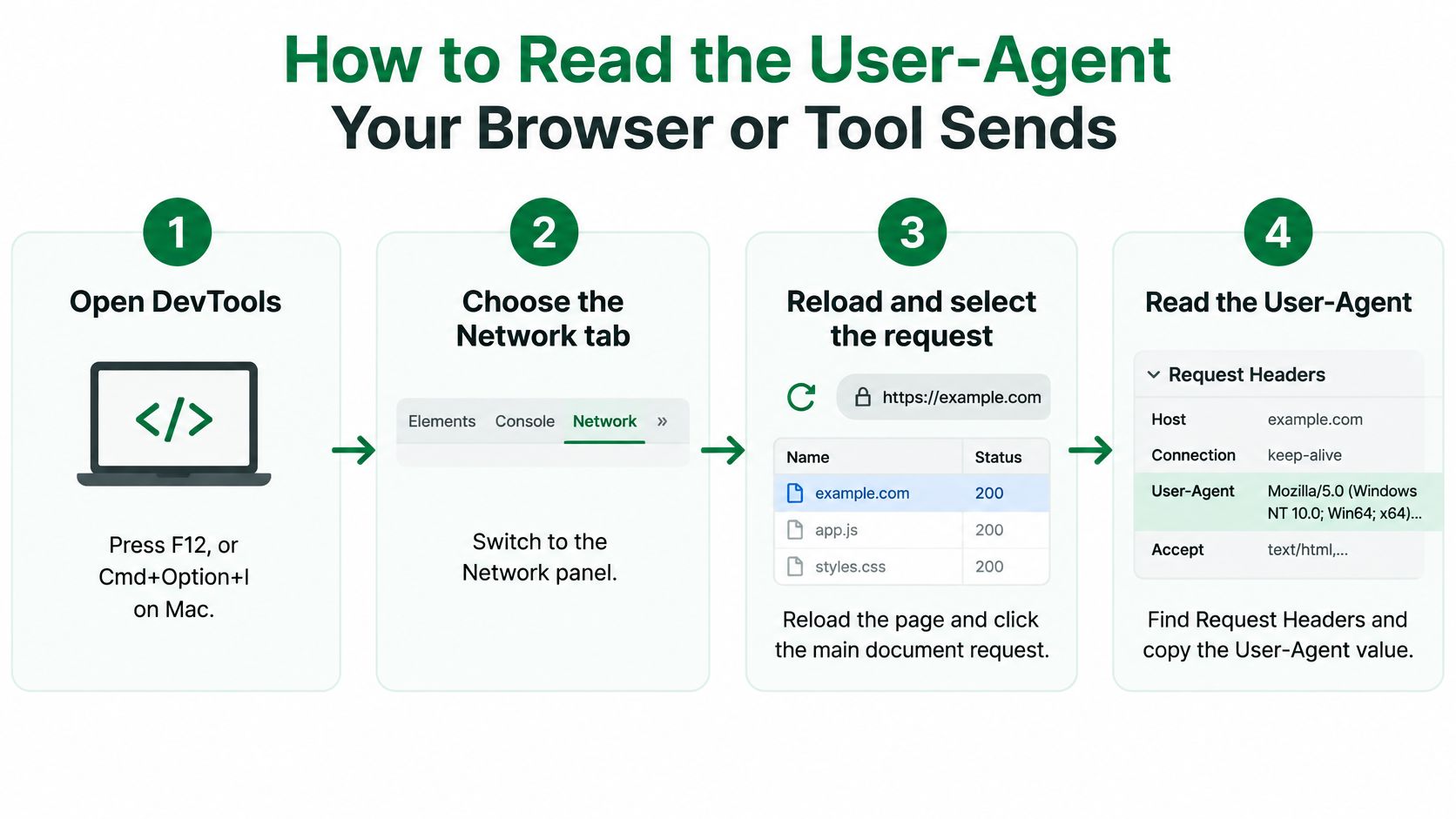
- Open the developer tools. Press F12, or Cmd+Option+I on a Mac. The Network tab records every request the page makes, including the fetch that returned the HTML you're looking at.
- Reload and select the document request. Click the first entry in the list and open the Headers panel. Your value sits under Request Headers, on the
user-agentline, in exactly the form the server received it. - Ask the page what it sees. In the Console, type
navigator.userAgent. That's the JavaScript-visible value, and it's useful to compare against the wire value, since extensions and frameworks can make the two differ. - Read what curl sends. Run
curl -v https://example.comagainst a URL you want to inspect. Outgoing request lines begin with>, and the default label is a shortcurl/8.xtoken with nothing else attached. - Read what Python sent. After a
requests.get, printresponse.request.headers. The prepared request shows precisely what left your process, and the default is usually apython-requests/2.xidentifier.
| Method | Action | Where the value appears |
|---|---|---|
| Browser DevTools | Open the Network tab, reload, select the main request | Request Headers, user-agent line |
| JavaScript console | Type navigator.userAgent | Console output, the value pages can read |
| curl | Run curl -v against a URL | Outgoing request lines starting with >, default curl/8.x |
| Python requests | Print response.request.headers | Request headers, default python-requests/2.x |
| HTTP Headers Checker | Paste a URL into the checker | Request and response headers for that URL |
When you need both halves of the conversation, the free Scrappey HTTP Headers Checker shows the request headers a URL receives next to its response headers, TLS details, and the redirect chain. That view helps when you want to compare what was sent with what came back, including headers that changed during redirects.
Where the two readings disagree
If two of those readings disagree, the difference is the finding. A browser extension that rewrites headers, a corporate proxy, an SDK adding its own token, or a framework default all sit between what you intended and what went over the wire. Those layers can change the label without changing the rest of the request, which is why a browser-looking value proves very little on its own. Investigate that gap before touching anything else, because every later test will inherit it.
The same caution applies when reading a value from a page. navigator.userAgent tells you what the page can see, not what the browser is. A relaxed comparison is useful for debugging. A strict identity claim needs evidence from the rest of the request, since the User-Agent is client-supplied metadata and works only as one clue among several.
How to Set a Custom User-Agent in Common Tools
A value can live in three places: one request, every request in a session, or one browser tab. Choosing the wrong scope causes most of the confusion people blame on the header itself.
Scope first, syntax second. A value applied to a single call disappears on the next one, and that's behind most "it didn't work" reports.
- Decide the scope you need. One request for a spot check, a session for a batch of calls that must look like one client, a tab for interactive debugging.
- Copy the full value from a current browser. Don't write one from memory, and don't mix a Chrome token with a Firefox platform comment. Copy from a real browser on the platform you intend to represent.
- Set it using the syntax for your tool, then move to the next step rather than assuming it took.
- Read it back from the server. Use one of the methods above and compare the echo with the value you meant to send.
| Tool | Syntax or location | Scope and notes |
|---|---|---|
| curl | curl -A 'value' URL, or -H 'User-Agent: value' | Applies to that single command |
| Python requests | session.headers['User-Agent'] = 'value' | Applies to every request made in that session |
| Node.js fetch | headers: { 'User-Agent': 'value' } in the request options | Applies to that request only |
| Chrome DevTools | Network conditions panel, then User agent override | Applies to the current tab while DevTools is in use |
| Firefox | about:config, then general.useragent.override | Applies to the whole browser profile until reset |
Some specifics worth knowing before you copy a command. curl -A and curl -H 'User-Agent: ...' set the same header, so pick one and stop there. A requests.Session carries session.headers across every call you make with it, which is why a per-request headers= argument should win when both are present. A Node.js fetch call takes the value inside its request options, so it applies to that call alone. In Chrome, the DevTools override lasts only while the panel is open on that tab, and Firefox's general.useragent.override preference sticks to the whole profile until you clear it.
The same -A flag runs through nearly every curl workflow, including the patterns in this guide to curl for website scraping. If you're testing a site someone assembled without code, see how no code website builders work: the visitor-facing request still comes from your browser or your tool, so the read-back method doesn't change.
A setting in code is only proven once the server-side echo shows the new value.
How Servers Use the Header and What Breaks Without It
Sending nothing is worse than sending something plain. A 2024 study crawled 270,048 web pages across 11,252 domains and found that 7% of domains became unusable when requests provided no User-Agent information, as reported by the academic researchers behind the UA-Radar project.
That number tells you the header isn't decorative. Servers branch on it constantly, and an empty value falls through to paths the site's authors never tested.
Four jobs the header does
- Content negotiation: serving a mobile layout, a lighter page, or a different locale based on what the label claims.
- Analytics: grouping traffic by browser and platform, which shows which clients to support.
- Compatibility workarounds: patching known client bugs, such as an older engine that mishandles a feature, so only that client gets the older code path.
- Bot classification: matching known crawler and automation tokens, then throttling, challenging or blocking them.
The bot side produces strange economics. A 2024 web-traffic study identified 373 bot user-agent strings, which came to 0.68% of unique user-agents but approximately 25.6% of all captured requests, according to the researchers behind the Shy Guys study. A tiny vocabulary of labels generates a quarter of the volume.
Practical consequences follow directly. A request with no value may receive a broken page. A crude substring rule can block a legitimate client that happens to include a blocked word. A value that looks like a bot may be throttled before it ever reaches your code. When you need to see how real traffic divides by label rather than guess, request datasets through SourceX let you compare headers against outcomes.
If your honest identifier still gets refused, the cause often sits outside the value itself, and this walkthrough of 403 Forbidden access denied responses covers what to check next.
Send a clear, stable value rather than nothing, and expect the server to classify whatever you send.
Why Changing the Header Alone Often Fails
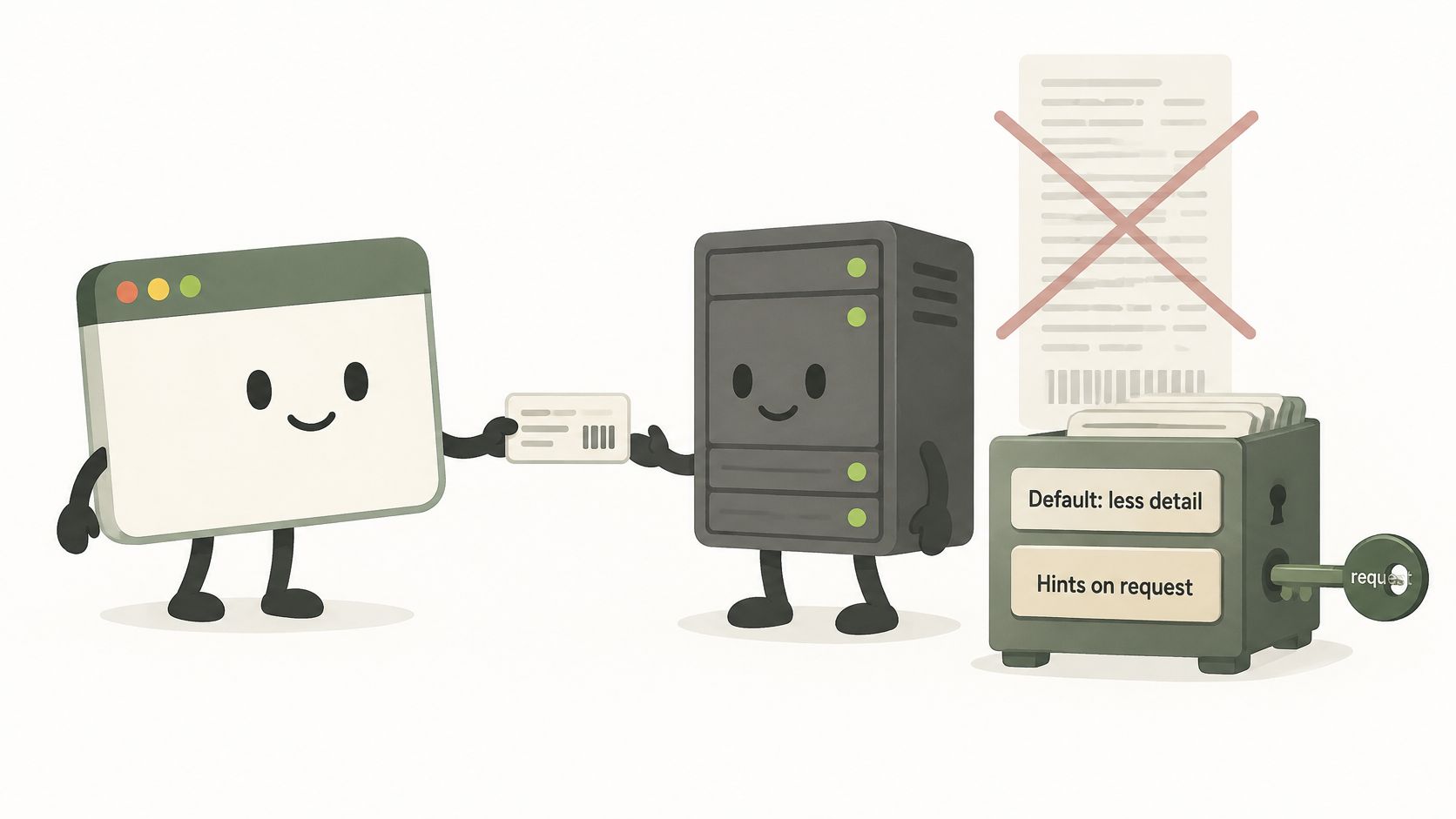
Browsers stopped broadcasting everything. Google's guidance on User-Agent reduction describes the header as carrying minimized identifying information, with extra detail released only when a server explicitly requests it and the browser permits disclosure. Parsing the legacy string alone now misses detail the server may be using.
The negotiated fields, Sec-CH-UA, Sec-CH-UA-Mobile and Sec-CH-UA-Platform, are not automatic replacements. The User-Agent Client Hints specification treats branding and the significant browser version as low-entropy information, keeps higher-detail hints behind an explicit request, and withholds hints from non-secure endpoints entirely. So a plain HTTP request can arrive with a reduced label and no hints at all, and that's the browser behaving correctly.
What has to agree with the new value
Copying a Chrome string into a script leaves everything else untouched, and the gaps are what give the request away.
- Platform: the
Windows NT 10.0comment in the string versusSec-CH-UA-Platform: "Windows". - Form factor: a desktop string versus
Sec-CH-UA-Mobile: ?1, which asserts a mobile device. - Language:
Accept-Languagethat matches a browser of that platform and region, rather than a loneen. - Everything else: the
Accept,Accept-Encodingand fetch metadata headers a genuine browser of that profile would attach without being asked.
A desktop Chrome string paired with a mobile hint and no fetch metadata headers is a request telling the server two different stories.
The brand is still evolving. The specification is a draft, not a W3C Standard, so hard-coding assumptions about which hints arrive is brittle. Test against the sites you care about and keep a fallback path.
Here's the practical version of that idea:
Watch the video on YouTubeWhen a site challenges or blocks a request, the header is one input among many, and this explainer on anti-bot protection covers the rest of what gets measured.
Pick the User-Agent for Each Request Type
Start with the request type, not the string. Whether you're fetching a static page, calling an API, driving a browser, or deliberately presenting as a crawler or a phone changes the correct answer completely.
For static pages and API endpoints, send an honest identifier built from your application name, its version and a contact URL. Something like myfeed-fetcher/VERSION (+) tells the server exactly what's calling and who to contact when it misbehaves. The Chrome documentation on User-Agent Client Hints explains why browsers moved to an explicit request-and-response model for browser detail. None of that changes the case for a plain identifier on an endpoint that never needed a browser.
For browser-rendered workflows, change nothing. Keep the browser's own generated string, its Accept, Accept-Language and Sec-CH-UA hints, and hold one profile for the whole session. A workflow that swaps values mid-session looks like several clients sharing a connection.
For crawler or mobile imitation, treat the change as a decision with a permission check in front of it, then make every related header match the chosen profile. A "realistic" string bolted onto unchanged headers is less convincing than a consistent request, because the mismatch is exactly what anomaly detection looks for.
| Request type | Recommended User-Agent | Keep from the browser or profile | Check before deploying |
|---|---|---|---|
| Static pages or API endpoints | Honest app identifier with name, version and contact URL | Not applicable | Confirm the server accepts the identifier |
| Browser-rendered workflows | The browser's own generated string | Accept, Accept-Language and Sec-CH-UA hints | Compare hints with the platform and mobile flags |
| Crawler or mobile imitation | Matching crawler or device string, only after a permission check | Every related header in that profile | Verify that every header agrees with the chosen profile |
The one check before you deploy
Read the full header set back from a server that reflects requests, and compare it against the profile you meant to send. Deploy when the echo matches, not before. Before scraping any site, you're responsible for obtaining authorization and for confirming that the data you use is accurate and lawful.
Scrappey handles the label side of this for you: our free User Agent Generator builds realistic strings complete with matching client hints, and the User Agent Rotator rotates values while keeping browser session configuration consistent across requests. That combination is what makes rotation useful instead of noisy, since each request carries a coherent profile rather than a string pasted onto unrelated headers. Head to Scrappey and run one request against the site you're working on to see the echo for yourself.